
Did you know that Google Gmail has a built-in subscription manager that lets you view and clean up active email subscriptions from a single page?
This eliminates the need to hunt for hidden unsubscribe links at the bottom of individual marketing emails.
How to access Gmail’s hidden subscription manager
The fastest way to view your active subscriptions on a desktop browser is by editing your inbox URL.
Step 1: Open Gmail in your desktop browser.
Step 2: Go to the browser address bar, go to the end of the URL, and replace “#inbox” with “#sub”.


Step 3: Press “Enter”.
This opens a consolidated dashboard of your active subscriptions, allowing you to unsubscribe directly.
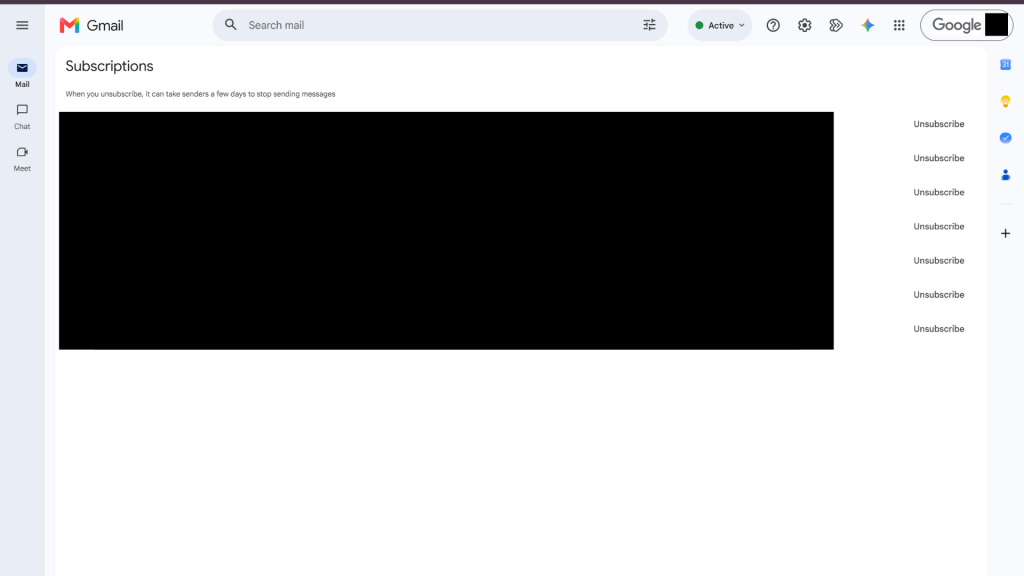
Alternatively, you can access this page through the standard navigation. On desktop, expand the left sidebar by clicking “More”, scroll to the bottom, and select “Manage Subscriptions”. On mobile, tap the top-left menu icon, scroll below the Trash folder, and tap “Manage Subscriptions”.
Track down data leaks with the ‘+’ alias trick
You can also trace who shares your contact details by using Gmail’s plus sign alias method. You do not have to create a new email address.
Instead, you can use this format when signing up on a website. The emails will still reach your original mailbox.
When registering for a service, add a plus sign and a tag after your username, such as ‘username+shopping@gmail.com’ or ‘username+streaming@gmail.com’.
This also helps identify who is selling your email since spam will be addressed to the specific email. You can filter out the address to keep your inbox spam free by creating an automated filter to archive or delete those messages automatically.
Manage paid app subscriptions

To avoid unwanted recurring charges, check your active paid services directly.
You can view, manage, or cancel active app subscriptions by opening your Google Play Store account settings. Centralising your billing ensures you are not paying for unused monthly or annual subscriptions.
Gmail Trick: Unsubscribe from unsolicited newsletters with one click
News Reports PH


0 Comments